NotebookLM for Teachers: Your Classroom's Missing AI Assistant
Stop spending Sunday nights recreating worksheets from scratch. This guide shows you exactly how to turn NotebookLM into a lesson-planning, material-creating, assessment-building machine — with copy-paste prompts you can use Monday morning.
TL;DR — What This Guide Covers
Why NotebookLM Actually Works for Teachers (Not Just Researchers)
Most AI tools give you a chatbot. NotebookLM gives you a corpus-grounded research workspace that only answers based on the sources you upload. It won't wander into its training data. It won't hallucinate a paper that doesn't exist. When it quotes something, it links back to the exact passage in your uploaded source.
For teachers, this distinction matters enormously. When you upload your textbook chapter, curriculum standards, and a YouTube explainer video, NotebookLM synthesizes all three into a single queryable knowledge base. You get theory + practice + context — and you can ask it to generate lesson plans, assessments, and learning materials that are grounded in your actual curriculum, not generic AI output.
Here's what NotebookLM can generate from your uploaded sources:
| Output Type | What It Does for Teachers | Time Saved |
|---|---|---|
| Audio Overview | Podcast-style conversation about your material — great for flipped classrooms and student revision | 30–60 min per topic |
| Video Overview | Visual explainer video from your sources | 2–4 hours per video |
| Slide Deck | Structured presentation you can export and edit | 1–3 hours per deck |
| Infographic | Visual summary — timelines, diagrams, concept maps | 1–2 hours per graphic |
| Mind Map | Interactive concept hierarchy — click to expand/collapse branches | 30–45 min |
| Flashcards | Key-term study cards ready for review or print | 45–90 min per set |
| Quiz | Auto-generated questions grounded in your sources with answer keys | 1–2 hours per quiz |
| Report | Structured written summary with citations | 30–60 min |
| Deep Research | Multi-step research that pulls from web + your sources | 2–5 hours per topic |
Teachers use NotebookLM to turn curriculum materials into source-grounded lesson plans, differentiated readings, quizzes, flashcards, and study guides — all cited to the uploaded sources, so nothing is hallucinated. Upload textbooks, standards, and readings, then generate age-appropriate materials, audio recaps, and assessments within your plan’s limits.
Setting Up Your First Teaching Notebook (Under 5 Minutes)
The quality of NotebookLM's output depends entirely on the quality and focus of your sources. Here's how to set up a notebook that produces classroom-ready materials from day one.
Create a Dedicated Notebook
Name it by subject + unit for instant recognition: "Grade 5 Science — Ecosystems" or "AP US History — Cold War Unit." NotebookLM's AI only reasons over the sources in that notebook — no noise, no distractions. One focused learning container per unit keeps outputs relevant.
Upload Your "Triangulated" Sources
The most effective notebooks combine three types of sources for theory + practice + context:
Know Your Limits
Each source can be up to 500,000 words or 200 MB per file. Free plans allow 50 sources per notebook; Plus allows 100; Pro allows 300. For most teaching units, 10–20 high-quality sources is the sweet spot — enough depth without diluting relevance.
Use the "Blank Notebook" Approach
Start with an empty notebook and describe what you need through chat. NotebookLM can search the web to suggest high-quality sources, which you review and add. This is powerful when you're building a unit from scratch and don't have all your materials gathered yet.
Supported Source Types for Educators
| Source Type | Works? | Teacher Use Case |
|---|---|---|
| Yes | Textbooks, curriculum guides, worksheets, research papers | |
| Google Docs | Yes | Lesson plans, collaborative documents, syllabi |
| Google Slides | Yes | Existing presentations you want to enhance |
| Web URLs | Yes | EdTech blog posts, educational websites, news articles |
| YouTube Videos | Yes | Khan Academy, Crash Course, teacher-created tutorials |
| Plain Text | Yes | Pasted content from anywhere — emails, notes, copied text |
| Images | Yes | Diagrams, maps, infographics, student work photos |
| Audio Files | Yes | Lecture recordings, podcast episodes, student presentations |
Unit Plans, Daily Lessons & Curriculum Alignment — in Minutes
This is where NotebookLM saves teachers the most time. Upload your standards and textbook, then let the AI scaffold the entire unit while you focus on the creative teaching decisions that actually matter.
Generate a Complete Unit Plan
Generate a Course Syllabus with Reading Schedule
Quick Lesson Plan from a Single Resource
Create Multimodal Learning Materials That Actually Match Your Curriculum
NotebookLM's Studio panel generates seven distinct output types from your sources. Each one is grounded in your uploaded content — not generic AI-generated fluff. Here's how to use each one effectively for teaching.
Guided Notes & Study Summaries
Audio Overviews (Student Podcasts)
Generate a podcast-style conversation between two AI hosts discussing your uploaded material. This is perfect for flipped classrooms — students listen before class, freeing up class time for discussion and hands-on activities.
Audio overviews support 80+ languages, making them invaluable for multilingual classrooms. Generation takes 3–8 minutes depending on notebook size. You can download the audio file and share it via Google Classroom, email, or your school's LMS.
Infographics & Visual Summaries
NotebookLM's infographic feature has become remarkably good at structuring information visually when you prompt it correctly. The key is to specify what to visualize and for whom.
Slide Decks
NotebookLM generates structured presentations that demonstrate strong slide logic — knowing what deserves a full slide, what should stay as speaker notes, and keeping the narrative tight without repetition. Generation takes 60–90 seconds for standard notebooks, up to 5 minutes for notebooks with 30+ sources.
You can revise individual slides with text edits and layout changes. Each revision creates a new deck, so batch your edits to conserve your daily generation quota. Export to PDF or PPTX when you're satisfied.
Mind Maps
The Mind Map is interactive — you can click on branches to expand or collapse subtopics, drilling into specific leaves or zooming back out to a higher-level view. This makes it an excellent tool for whole-class concept mapping projected on screen, or for students to explore the structure of a topic independently.
Video Overviews
Generate short visual explainer videos (1–10 minutes) from your sources. Standard Video Overviews are available on all plans. For Pro and Ultra subscribers, Cinematic Video Overviews offer enhanced production quality. Use these for substitute teacher days, homework previews, or as review material before assessments.
Quizzes, Flashcards & Rubrics — Grounded in Your Actual Content
The biggest problem with AI-generated assessments? They test generic knowledge, not what you actually taught. NotebookLM solves this because every question is grounded in the sources you uploaded — the same textbook chapter, the same standards, the same material your students saw.
Multi-Level Quiz Generator
Flashcard Sets
Generate flashcard sets directly from the Studio panel. Each card is grounded in your sources with the relevant passage attached. You can use these for in-class review games, print them for physical study sets, or export the data for Anki-compatible spaced repetition.
Rubrics
One Notebook, Multiple Reading Levels — Automatically
Differentiating materials is one of the most time-consuming parts of teaching. NotebookLM can take your grade-level content and restructure it for different learner profiles — while staying grounded in the same source material.
ELL & Multilingual Support
Audio Overviews support 80+ languages. For ELL students, you can generate an audio summary in their home language alongside the English version, helping them build conceptual understanding while developing English proficiency. Use the custom prompt to specify: "Explain at a [grade 3/5/8] reading level with simplified vocabulary. Define all technical terms in parentheses."
Gifted & Talented Extensions
What You Can (and Can't) Share with Students
This is where many teachers get tripped up. NotebookLM has specific rules about student access that you need to understand before building your workflow around it.
Due to Google's terms of service, students should not interact directly with the notebooks you create. This means you cannot set up a notebook and have students chat with it themselves.
What you CAN do: Generate materials inside NotebookLM, then export and share them. Copy reports to Google Docs. Download Audio Overviews as files. Export Slide Decks and Infographics as PDFs. All of these can be shared freely through Google Classroom, your LMS, or email.
The Export-and-Share Workflow
Generate Inside NotebookLM
Create your materials — flashcards, quizzes, study guides, audio overviews, slide decks — using the prompts in this guide. Everything is generated from your uploaded sources with citations intact.
Export to Google Workspace
Copy reports and study guides to Google Docs. Download Slide Decks as PDF or PPTX. Save Audio Overviews as MP3 files. Export Infographics as images. Everything becomes a standard file you control.
Share Through Your Platform
Post to Google Classroom, attach to assignments, embed in your LMS, or email directly. Students interact with the exported materials — not the notebook itself. This keeps you compliant with terms of service while giving students high-quality, curriculum-aligned resources.
What About Workspace for Education?
If your school uses Google Workspace for Education, your data has additional protections: it will not be reviewed by human reviewers and will not be used to train AI models, even if you provide feedback (thumbs up/down). This makes NotebookLM one of the safest AI tools for educators handling sensitive student information.
Ready-Made Workflows for Every Department
Each subject has unique needs. Here are tested workflows organized by discipline, with prompts tailored to the specific demands of each area.
Elementary Science
Upload the textbook chapter + curriculum standards. Generate a step-by-step experiment video, a safety quiz, and a mind map of key concepts. Use the Audio Overview as a "science podcast" students listen to before the hands-on activity.
K–5Middle School History
Upload primary sources + textbook + a relevant YouTube documentary. Generate a timeline infographic, a debate-style Audio Overview presenting two perspectives on the event, and DBQ-style writing prompts with source citations.
Grades 6–8High School ELA
Upload the novel/poem + literary analysis articles + AP rubric. Generate Socratic seminar questions, a thematic infographic, and three essay prompts at different difficulty levels with scoring rubrics aligned to AP criteria.
Grades 9–12High School Math
Upload problem sets + textbook explanations + Khan Academy video transcripts. Generate step-by-step solution guides, scaffolded practice problems (3 difficulty tiers), and a concept summary students can reference during homework.
Grades 9–12World Languages
Upload textbook dialogues + grammar guides. Generate Audio Overviews in the target language (80+ languages supported), vocabulary flashcards with pronunciation guides, and cultural context infographics connecting language to real-world usage.
All LevelsSpecial Education
Upload the grade-level content + IEP goals (confidentially, within your school account). Generate highly scaffolded versions with visual supports, simplified language, chunked instructions, and concrete manipulative suggestions aligned to each student's accommodations.
All LevelsCollaboration, Data Analysis & Multi-Notebook Systems
Once you're comfortable with single-notebook workflows, these advanced strategies multiply your productivity across your entire teaching load.
Collaborative Planning with Department
Share notebooks with colleagues who teach the same course. Everyone can contribute sources, review generated materials, and refine prompts collaboratively. This is especially powerful for common assessments — generate a shared quiz bank that all teachers in the department use, ensuring consistency while saving everyone time.
The Weekly Rhythm
The most effective teacher-users of NotebookLM follow a consistent weekly pattern:
30-Minute Setup
Friday afternoon: create next week's notebook, upload sources, generate the unit overview infographic and mind map. This gives your subconscious the weekend to process the material.
60-Minute Deep Build
Sunday evening: generate daily lesson plans, slide decks, differentiated materials, and the week's quiz. Export everything to Google Docs and Classroom. Your entire Monday is planned.
Mid-Week Adjustment
Wednesday: based on how students responded, generate a quick remediation activity or extension task. Upload any new student work samples to refine the notebook's understanding of where students are struggling.
Multi-Notebook Knowledge System
For teachers managing multiple preps (e.g., teaching AP History, regular History, and an elective), create a master notebook containing your curriculum standards and cross-cutting resources, then unit-specific notebooks for each prep. The master notebook helps you see connections across courses; the unit notebooks keep outputs focused and relevant. Free plans support up to 100 notebooks; Pro supports 500 — more than enough for any teacher's full course load.
Deep Research for Curriculum Development
When you're designing a new course or overhauling an existing one, use Deep Research to survey the latest pedagogical approaches, primary sources, and multimedia resources. Create a blank notebook, describe what you're building, and let NotebookLM search the web for high-quality sources. Review and add the best ones, then generate your full curriculum from that enriched notebook. Free plans include 10 Deep Research queries per month; Pro includes 20 per day.
What NotebookLM Can't Do (and How to Work Around It)
No tool is perfect. Here's what to watch out for and how to get the best results despite the limitations.
-
⚠️
Students cannot interact directly with notebooks. Due to terms of service, you must generate materials and export them — students should not chat with the notebook themselves. This is a legal restriction, not a technical one.
-
⚠️
Source quality determines output quality. If your textbook PDF is poorly scanned or copy-protected, the upload may fail silently. Convert protected PDFs before uploading. Garbage in, garbage out — the best prompt in the world can't fix bad source material.
-
⚠️
Always verify facts and citations. NotebookLM is grounded in your sources, which significantly reduces hallucination — but it's not zero. Your professional judgment is the final quality check. Never distribute AI-generated content to students without reviewing it first.
-
⚠️
Highly creative tasks still need your input. NotebookLM excels at structuring, summarizing, and generating from sources. But an original creative writing rubric, a nuanced discussion of classroom dynamics, or a culturally responsive lesson still requires your expertise. Use the AI for the 80% that's structured work; invest your time in the 20% that's art.
-
⚠️
Daily generation quotas exist. Free plans get 3 Audio Overviews, 10 reports, 10 quizzes, and 10 flashcards per day. If you're planning a full week of materials, batch your generation on one day rather than spreading it out. Pro plans offer significantly higher quotas (20 audio, 100 reports/quizzes/flashcards per day).
-
⚠️
Slide decks are rendered as images, not editable vector elements. You can revise slides through the AI revision interface and export to PPTX, but the exported slides contain image-based content. Plan to do final formatting tweaks in Google Slides or PowerPoint after export.
-
⚠️
Copy-protected PDFs fail silently. If your textbook is DRM-protected, the upload will appear to succeed but the source won't be usable. Use a PDF tool to remove protection first, or find an unprotected version of the same content.
-
💡
Iterate your prompts. Your first generation won't be perfect. Use follow-up prompts like "Make this more visual," "Simplify for a 4th-grade reading level," "Add more application questions," or "Focus only on Chapter 3." NotebookLM maintains conversation history, so refinements build on previous outputs.
Frequently Asked Questions from Educators
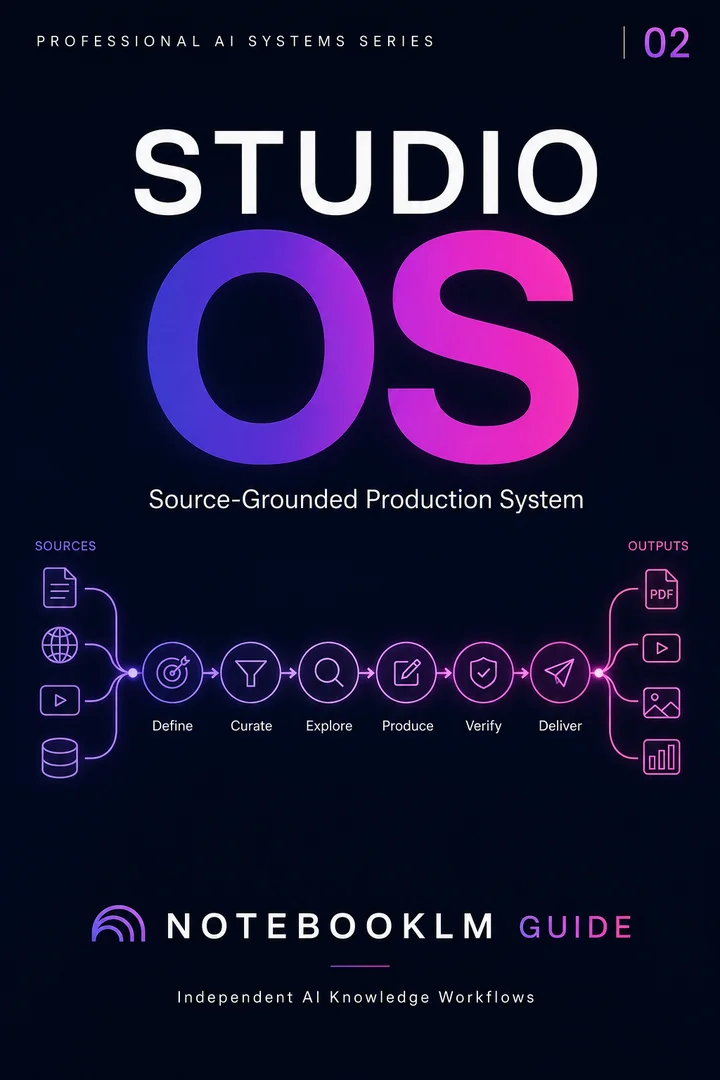
The Complete Teacher's Prompt Library
Every prompt in this guide — unit plans, multi-level quizzes, rubrics, ELL scaffolds, audio & video scripts — packaged as copy-paste templates, organized by subject and grade band, with a 5-minute setup checklist.
More for educators
Hand-picked guides from the same topic cluster.
30 copy-ready AI prompts · one PDF
Thirty prompts you can paste today, sorted across research, content, Studio outputs and multi-AI work. Instant access. No credit card.
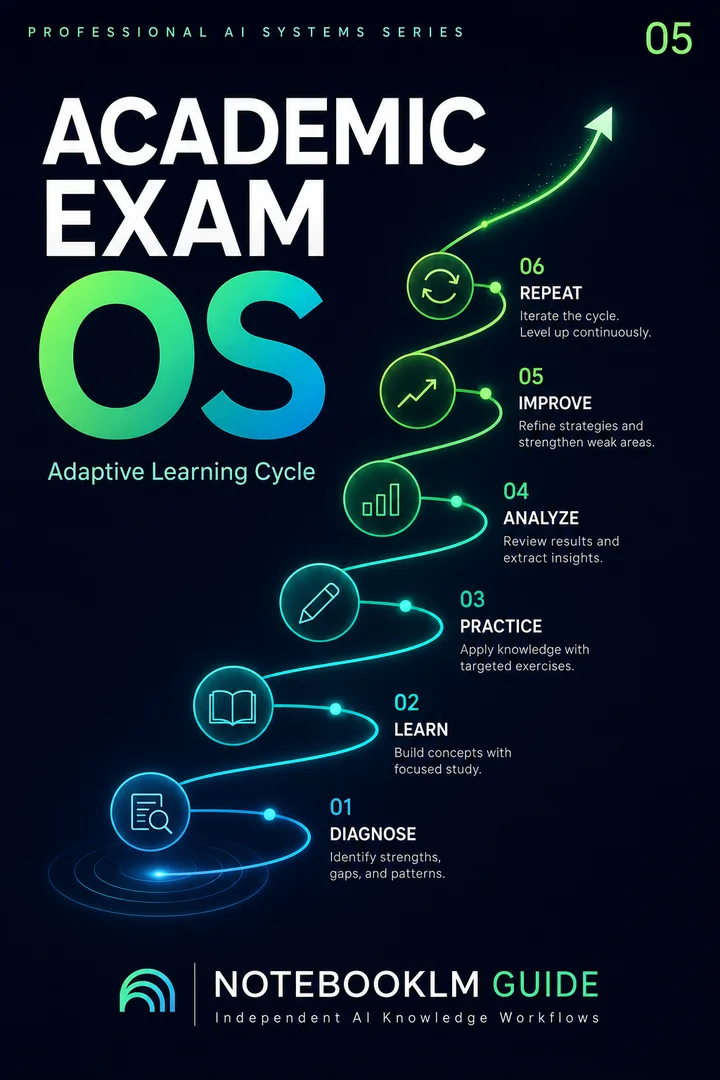
Academic Exam OS
An adaptive study cycle that diagnoses weaknesses, guides focused learning, and improves performance session by session.
- Reusable, source-grounded workflow architecture
- Complete prompt library with implementation steps
- One-time purchase · permanent access