NotebookLM + Claude + Gemini: The Multi-AI Research Stack That Actually Works
Stop tab-switching. This guide shows you how to connect three AI tools into a single pipeline — grounded retrieval, deep reasoning, and broad exploration — then run it all through natural language. With setup tutorials, 10 use cases, and copy-paste prompts for every workflow.
TL;DR — What This Guide Covers
Why a Single AI Tool Can't Do Everything
Every AI tool has a superpower and a blind spot. The people getting 10x results aren't choosing one — they're orchestrating three.
Here's the uncomfortable truth nobody in the AI space likes to admit: no single AI tool is the best at everything. Each one has a sweet spot and a ceiling.
NotebookLM is unmatched at grounded retrieval — you upload your sources and it only answers from those sources. No hallucination about papers that don't exist, no pulling from training data it shouldn't reference. When it quotes something, it links to the exact passage. But its reasoning depth and creative output hit a wall. You can't ask it to write a nuanced argument, design a branded presentation, or generate code.
Claude is exceptional at deep reasoning, structural analysis, nuanced writing, and creative output. It produces the best long-form writing of any AI model. Claude Code can build software, Claude Design can create professional visuals. But Claude doesn't know your documents — unless you upload them manually to a Project.
Gemini excels at real-time web search, multimodal understanding, and tight integration with Google Workspace. It can pull current data, analyze images, and operate across Gmail, Drive, Docs, and Slides natively. But its reasoning on complex multi-step analysis trails behind Claude, and it doesn't have NotebookLM's source-grounding precision.
The old workflow looked like this: open NotebookLM → copy insight → switch to Claude → paste → refine → realize you need more context → switch back → search → copy → paste again. Every context switch breaks your momentum.
In 2026, two new bridges changed everything:
- MCP (Model Context Protocol) connects Claude directly to NotebookLM — Claude can query your notebooks, create sources, trigger Studio outputs, all through natural language. No tab-switching.
- Gemini Notebooks Sync makes NotebookLM and Gemini share the same notebook object — sources added in one appear in the other. Bidirectional, automatic, real-time.
Use each AI for its strength in one pipeline: Claude extracts and structures, NotebookLM grounds answers in your sources with citations, and Gemini handles broad research. NotebookLM anchors the stack — every claim traces to an uploaded source, so nothing is fabricated — while Claude and Gemini extend reach and synthesis.
The Role of Each Tool in the Stack
Think of it as a team: the researcher, the strategist, and the explorer. Each has a distinct job — and together they cover each other's gaps.
NotebookLM
Your knowledge base. Everything you upload becomes queryable, citable, and Studio-generatable.
- Source-grounded answers — no hallucination beyond your sources
- 9 Studio outputs — audio, video, slides, infographics, mind maps, flashcards, quizzes, reports, data tables
- 500,000 words per source, 200 MB per file, up to 300 sources/notebook (Pro)
- Interactive Audio Overviews — join the AI podcast and ask questions mid-conversation
- Limitation: Shallow reasoning, no web search, no code generation
Claude
Your writer, analyst, and builder. Takes grounded data and transforms it into polished, structured output.
- 200K+ context window for deep multi-document synthesis
- Superior writing quality — nuanced, structured, stylistically controlled
- Claude Code — build apps, tools, and dashboards from research
- Claude Projects — persistent knowledge base + system prompt per project
- Limitation: No real-time web search, doesn't know your NotebookLM library natively
Gemini
Your scout and integrator. Searches the web, understands images, and operates inside Google's ecosystem.
- Real-time web search for current events, trends, and new sources
- Google Workspace integration — Gmail, Drive, Docs, Slides
- Gemini Notebooks — organized workspace with bidirectional NotebookLM sync
- Multimodal input — analyze images, charts, and documents visually
- Limitation: Weaker deep reasoning than Claude, less source-grounded than NotebookLM
Connecting Claude to NotebookLM via MCP
MCP (Model Context Protocol) is an open-source standard that lets Claude Desktop communicate with external tools. A community-built MCP server bridges Claude and NotebookLM — once configured, Claude can read your notebooks, query sources, create new notebooks, and trigger all 9 Studio features through natural language.
Install the Python Package Manager (uv)
Open your terminal. On macOS:
curl -LsSf https://astral.sh/uv/install.sh | sh
On Windows (PowerShell):
powershell -ExecutionPolicy ByPass -c "irm https://astral.sh/uv/install.ps1 | iex"
Install the NotebookLM MCP Server
The community tool by Jacob Ben-David is the most widely used:
uv tool install notebooklm-mcp-server
Authenticate with Google
A one-time browser login so the MCP server can access your NotebookLM data:
notebooklm-mcp-auth
This opens a Google sign-in window. Use the same Google account you use for NotebookLM.
Configure Claude Desktop
Register the MCP server in Claude Desktop's configuration file. On Mac, edit ~/Library/Application Support/Claude/claude_desktop_config.json. On Windows, the path is in your AppData folder. The MCP server's documentation provides the exact JSON snippet.
Restart Claude Desktop — Done
Restart the app. Claude now has persistent access to your NotebookLM workspace. Test it: in any Claude conversation, say "List my NotebookLM notebooks" — Claude will reach into your library and return the list. Total setup time: 10–15 minutes.
What Claude Can Do Once Connected
Once MCP is configured, Claude can trigger all nine NotebookLM Studio features from within a single conversation:
- Generate Audio Overviews (podcasts) from your research notebooks
- Create Video Overviews synthesizing your sources
- Build Mind Maps visualizing connections across your knowledge base
- Generate Reports pulling insights from multiple notebooks
- Create Flashcards for studying frameworks you've researched
- Design Quizzes testing your understanding of the material
- Build Infographics visualizing data from your sources
- Generate Slide Decks presenting your research findings
- Create Data Tables organizing information systematically
Beyond Studio outputs, Claude can also create new notebooks, add sources (URLs, text, files), query across multiple notebooks, run batch operations, and execute multi-step pipelines. The MCP server also exposes a CLI (nlm) for scripting and automation outside of Claude.
Connecting Gemini to NotebookLM via Gemini Notebooks Sync
Google's native integration is simpler: Gemini Notebooks and NotebookLM now share the same notebook objects. Sources added in one appear in the other automatically.
Open the Gemini App (Web)
Gemini Notebooks is rolling out to Google AI Ultra, Pro, and Plus subscribers on the web, with mobile and free user access coming in subsequent weeks. Open gemini.google.com and look for "New notebook" in the side panel.
Create or Connect a Notebook
You can create a new notebook directly in Gemini, or it will automatically sync with existing NotebookLM notebooks. Add files (PDFs, Docs, spreadsheets), write custom instructions, and organize related conversations.
Add NotebookLM as a Source in Chat
In any Gemini chat, click the "+" button in the prompt box and select NotebookLM. Choose which notebook to attach. Gemini will now ground its responses in that notebook's sources — while also having access to web search, Workspace tools, and multimodal capabilities.
Use Both Apps for What They Do Best
Start in NotebookLM for source-grounded analysis (generate Audio Overviews, Infographics, Slide Decks). Switch to Gemini for broader exploration — ask it to search the web for related research, generate content based on your notebook, or use Gemini's Deep Research, Canvas, and Veo tools on your notebook content.
Gemini Notebooks vs. Claude Projects vs. ChatGPT Memory
Each major AI platform has organized its persistent context differently:
| Feature | Gemini Notebooks | Claude Projects | ChatGPT Memory |
|---|---|---|---|
| Organization | Notebook = folder with files, instructions, chats | Project = knowledge base + system prompt + conversations | Automatic memory across all chats |
| File uploads | Yes — PDFs, Docs, Sheets | Yes — any file type + URLs | No persistent file storage |
| Custom instructions | Per notebook | Per project system prompt | Limited — memory preferences |
| Research tool integration | Yes — bidirectional NotebookLM sync | Via MCP (manual setup) | No |
| Web search | Yes — native | No (as of June 2026) | Yes |
| Workspace integration | Deep — Gmail, Drive, Docs, Slides | None | None |
10 Workflows That Prove the Stack Works
Each use case includes the exact workflow, which tools to use, and one copy-paste prompt designed for the primary tool in the chain.
1. Cross-Notebook Theme Synthesis
You have 5+ notebooks covering different aspects of a topic — literature reviews, competitor analysis, user research, technical specs. You need to find themes, contradictions, and gaps across all of them. This is the most powerful MCP workflow: Claude queries your entire NotebookLM library in a single conversation.
2. Literature Review Pipeline
Upload 10+ research papers to NotebookLM. Use Gemini to search for the latest 2026 publications you may have missed. Then hand everything to Claude for synthesis into a publication-ready literature review with proper citations.
3. Research-Backed Presentation Deck
Instead of manually querying NotebookLM dozens of times to understand your research, then hoping a generic slide prompt captures the right insights — let Claude autonomously query your entire notebook, synthesize what matters, and generate a context-aware slide deck grounded in actual research.
4. Exam Study System (MCAT, CFA, Bar, etc.)
Upload your study materials to NotebookLM and generate flashcards and Audio Overviews for passive review. Use Gemini to create a personalized study schedule based on your exam date. Then use Claude to generate practice exams with detailed answer explanations grounded in your sources.
5. Content Factory (Newsletter, YouTube, Blog)
Your research lives in NotebookLM — transcripts, articles, notes, data. Extract the core insights, have Gemini search for trending angles and current data, then feed everything to Claude for polished content creation. This is how content creators run media companies on a multi-AI stack.
6. Academic Paper Draft
Build the workflow before buying a package
Get the AI Research Starter Kit: four workflows, 13 ready-to-use prompts, and a 7-day plan.
Upload your papers, data, and notes to NotebookLM. Use Deep Research to fill gaps. Then hand the entire grounded knowledge base to Claude via MCP for a zero-hallucination paper draft where every claim traces to a source.
7. Research-to-Knowledge-Graph (Obsidian)
Use Claude Code with the MCP server to pull everything out of NotebookLM into your local Obsidian vault. Each source becomes a file. Each topic becomes a file. Citations create wikilinks between them. Research that was trapped in a browser window becomes a navigable knowledge graph you own.
8. Competitive Intelligence Report
Upload competitor reports, earnings calls, product docs, and market analyses to NotebookLM. Use Gemini to pull the latest real-time data from the web. Then Claude synthesizes everything into a structured competitive intelligence brief with strategic recommendations.
9. Batch Audio Overview Generation
Need podcast-style overviews for 10 different research topics? Instead of manually generating them one by one in NotebookLM's UI, use Claude + MCP to batch-trigger Audio Overview generation across all your notebooks in a single command.
10. Self-Evolving Knowledge Base
The ultimate workflow: generate output with Claude, then feed it back into NotebookLM as a new source. Your knowledge base grows and improves with each cycle. Over time, your notebook becomes smarter than any single AI tool because it contains synthesized intelligence from multiple passes.
The 5-Step Multi-AI Research Pipeline
This is the master workflow — combining all three tools into a single, repeatable pipeline for any research-to-output task.
Collect & Ground — NotebookLM
Create a dedicated notebook. Upload all raw materials — PDFs, YouTube videos, web articles, Google Docs, images, audio. Use Deep Research to fill gaps. Generate a structured report as your baseline understanding. This is your grounded knowledge vault. Everything downstream is built on these sources.
Explore & Expand — Gemini
Attach the notebook to Gemini. Ask it to search the web for the latest data, trends, and perspectives that your existing sources don't cover. Gemini's real-time search + multimodal analysis fills the temporal and contextual gaps that NotebookLM's static sources can't.
Synthesize & Create — Claude
Via MCP (or by importing exports), hand Claude the entire grounded knowledge base. Claude performs deep multi-step reasoning, structural analysis, and high-quality writing. It can also trigger NotebookLM Studio outputs — slide decks, audio, video — with context-aware prompts that generic NotebookLM usage can't match.
Polish & Produce — Multi-Tool
Use NotebookLM Studio for audio/video. Use Claude Design for branded visuals. Export slides to PPTX for final formatting. Generate infographics for social media. Create flashcards and quizzes for study materials. Each tool produces its best output type.
Iterate & Enrich — Close the Loop
Feed Claude's synthesized outputs back into NotebookLM as new sources. Your notebook becomes progressively smarter with each cycle. The next time you query it, the AI has access to not just your original sources but also the synthesized intelligence from previous passes. This creates a self-improving knowledge system.
When to Use Which Tool
Not every task needs all three tools. Here's a quick decision framework for choosing the right tool for the job.
| Task | Best Tool | Why |
|---|---|---|
| Read and cite from my documents | NotebookLM | Source-grounded, zero hallucination, citations |
| Generate a podcast from my research | NotebookLM | Audio Overview — 80+ languages, Interactive mode |
| Find what's happening right now | Gemini | Real-time web search, current data |
| Analyze an image or chart | Gemini | Multimodal understanding, Google Lens integration |
| Work with Gmail/Drive/Docs | Gemini | Native Workspace integration |
| Write a nuanced long-form report | Claude | Superior writing quality, structural reasoning |
| Synthesize across 10+ documents | Claude | 200K context, deep multi-step reasoning |
| Build an app or tool from research | Claude | Claude Code — generate working software |
| Find themes across multiple notebooks | Claude (MCP) | Cross-notebook querying in a single conversation |
| Create a branded slide deck | NLM → Claude | NLM generates from sources, Claude polishes |
| Batch-generate audio for 10 topics | Claude (MCP) | Batch operations via natural language |
| Build a knowledge graph | Claude Code (MCP) | Export to Obsidian with linked citations |
What Can Go Wrong (and How to Prevent It)
-
⚠️
MCP requires Claude Desktop, not the web app. If you're using claude.ai in a browser, MCP won't work. You must install the native desktop application. This is a technical limitation of how MCP communicates with local server processes.
-
⚠️
MCP uses your Google account credentials. The authentication is a one-time browser login, but the MCP server stores your credentials locally. For sensitive research, use a dedicated Google account. The server runs locally — no data passes through third-party servers — but the credentials are still on your machine.
-
⚠️
Gemini Notebooks sync is rolling out gradually. As of June 2026, it's available to Google AI Ultra, Pro, and Plus subscribers on web, with mobile and free access coming later. If you don't see the feature yet, it may not have reached your account.
-
⚠️
Community MCP servers are not officially supported by Google. The notebooklm-mcp-server is a community project. It's open-source and widely used, but Google doesn't maintain or guarantee it. Pin to a specific version and check the GitHub repository for updates.
-
⚠️
Daily quotas still apply. MCP doesn't bypass NotebookLM's limits. Audio Overviews, slide decks, and other Studio outputs still count against your daily quota (Free: 3 audio/day; Pro: 20/day; Ultra: up to 200/day). Batch operations can exhaust quotas quickly — plan accordingly.
-
⚠️
NotebookLM and Gemini are still somewhat separate products. While Gemini Notebooks sync with NotebookLM, the integration isn't seamless. Gemini can reference notebook sources, but it uses its own reasoning model — responses may differ from NotebookLM's source-grounded answers. Always verify critical information against the original NotebookLM citations.
-
💡
Start small, then scale. Don't try to connect all three tools on day one. Start with one notebook and Claude MCP. Get comfortable with the workflow. Then add Gemini for exploration. The full pipeline is powerful but can be overwhelming if you try to learn everything simultaneously.
-
💡
Use the CLI for automation. The MCP server includes a command-line interface (
nlm) that supports scripting, batch operations, and pipeline automation outside of Claude Desktop. If you're comfortable with the terminal, this is often faster for repetitive tasks.
Frequently Asked Questions
nlm) supports scripting and batch operations. You can write shell scripts or use Claude Code to orchestrate multi-step workflows. However, the Gemini leg of the pipeline doesn't have a CLI equivalent — it requires the Gemini web app. For fully automated pipelines, you'd need to use the MCP CLI for the Claude↔NotebookLM loop and handle Gemini interactions manually or through Google Apps Script.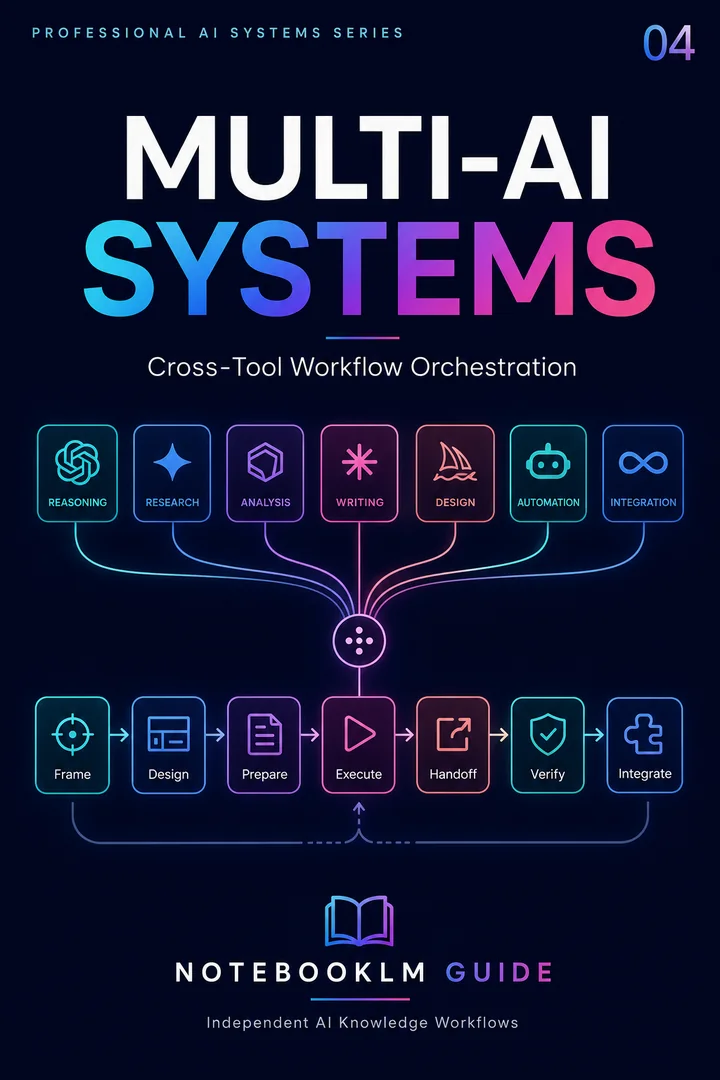
The Complete Claude + Gemini + NotebookLM Playbook
Every prompt and pipeline in this guide — MCP setup, Claude Projects scaffolds, Gemini deep-research chains, and the 10 cross-tool use cases — packaged as copy-paste templates with wiring diagrams and a troubleshooting checklist.
Continue the multi-AI stack
Hand-picked guides from the same topic cluster.
Short Video Overviews
60-second vertical videos from your docs
Multi-AIClaude × NotebookLM
Wire Claude to NotebookLM via MCP
Multi-AINotebookLM + Perplexity
Live discovery meets grounded analysis
Multi-AICouncil of Agents
Adversarial AI review of your work
CompareWhich AI for research?
Honest head-to-head comparison
Connect the four core professional systems for $69.99
Sovereign OS includes the complete Research, Studio, Content, and Multi-AI workflow library — four systems in one purchase. Bought separately, the four included systems cost $99.96. Sovereign OS is $69.99, saving $29.97, with permanent access. Exam systems are separate $24.99 packages.
Four workflows · 13 ready-to-use prompts · 7-day plan
Start with four practical, source-grounded workflows, 13 ready-to-use prompts, and a 7-day plan. Instant access. No credit card.