Studio · Short Video OverviewVerified Aug 19, 2026
NotebookLM Short Video Overviews: create better 60-second videos
Google currently lists Short as one of NotebookLM's Video Overview formats, designed to help you grasp key concepts from your sources in roughly 60 seconds. This guide shows how to create one, steer the focus with source-grounded prompts, choose Short versus other overview formats, troubleshoot weak results, and decide when a one-minute output is the wrong tool.
Official formatShort Video Overview
Length~60 seconds
EvidenceGoogle Help · verified Aug 19
Current access noteEnglish · age 18+
Quick Answer · Official
What is a NotebookLM Short Video Overview?
Short is a Video Overview format for quickly grasping key concepts from your notebook sources in approximately 60-second videos. Google currently documents Short alongside Explainer and Cinematic formats. The current Help page says Short is English-only for users age 18+, and does not specify a dedicated Short renderer or a separate Short-only daily quota.
What is verified: the Short format exists and is ~60 seconds. What is observed: the worked example on this page uses a vertical presentation. What is not claimed: Google has not publicly identified Nano Banana 2 Lite as the exclusive engine for Short Video Overviews. Nano Banana 2 Lite is available in NotebookLM generally, but model attribution for this specific format remains unconfirmed.
NotebookLM's Video Overview tool currently offers multiple formats for different jobs. Short is the compressed option: Google describes it as a way to quickly grasp key concepts from your sources in a video of roughly one minute.
That makes Short useful when the job is orientation, recall, or a fast explanation rather than comprehensive synthesis. A one-minute output can surface one central idea, but it cannot carry every caveat, secondary finding or citation trail from a dense source set.
The page's worked example is presented vertically, which makes the format naturally useful on phones. I treat that as an observed output characteristic, not as a universal product guarantee, because Google's current Short help text does not publish a fixed aspect-ratio specification.
Observed example · not a universal spec
What a Short output can look like
This example uses a vertical frame and a single through-line. Use it to judge pacing and compression rather than as evidence that every Short Video Overview has an identical layout.
The most important check is still source fidelity: does the one-minute explanation preserve the source's central claim and its necessary caveat?
Key fact: Google currently documents Short as an approximately 60-second Video Overview format. The exact visual implementation and model stack can change, so this page separates official product facts from observed output behavior.
Should you cut a longer NotebookLM video into Shorts — or generate native Shorts?
The tempting workflow is not always the best workflow
The repurposing dilemma
You have a strong NotebookLM Video Overview and the obvious idea is efficient: download the longer video, cut it into several short clips, and publish those as Shorts. That can work — especially when the longer video is your canonical explanation and you want promotional excerpts from the same narrative.
But the first clip often inherits the structure of the long version: setup before payoff, transitions that refer to earlier material, and visuals paced for a viewer who started at minute zero. A clip can be technically short without being designed as a Short.
The alternative is to return to the same notebook and generate native Short Video Overviews, one question at a time. Each Short can start with its own hook, preserve one piece of evidence, and stand alone for a different audience.
1. Cut the longer Video Overview
Create a fuller Explainer or other longer Video Overview first, download it, then edit strong standalone moments into clips outside NotebookLM.
Best for · one canonical video + promotional excerpts
2. Generate native Shorts
Use the same notebook, but give each Short one audience, one question, one claim and one ending. The whole minute is designed for the short-form job.
Best for · standalone teaching, research findings, social discovery
3. Hybrid: long first, native Shorts second
Use the longer video to discover the full narrative, then generate several native Shorts from the same source set for the strongest findings, concepts or decisions.
Best for · reusable content systems
Fast rule: if the Short must make sense with zero prior context, generate it natively. If the clip is meant to advertise or excerpt a longer canonical video, cutting the long version can be efficient. For most research, teaching and content systems, the hybrid approach gives you the strongest master asset and stronger standalone Shorts.
Native Short strategy: design for one minute from the start
One Short = one question. Do not ask one minute to summarize an entire notebook.
Use a focused source selection. Reduce competing evidence before generating.
Write the hook into the instruction. Specify the surprising finding, misconception, tension or decision that should open the video.
Protect one proof point. Ask for one figure, quotation, example or source-grounded fact that earns the conclusion.
Protect one caveat. In research and teaching, compression should not erase the limitation that changes interpretation.
End with a next step. Send viewers to the paper, class discussion, full Video Overview, notebook or longer explanation.
How to think about Short Video generation
An operator model for better prompting — not a claim about Google’s private architecture
Google documents what the Short format does, but not a complete internal production pipeline. For practical use, it is safer to think in terms of four operator decisions you can control: what sources are in scope, what single question the video must answer, what evidence must survive compression, and what the viewer should understand at the end.
1. Control the source set. A focused notebook gives the Short fewer competing narratives. If one finding matters, temporarily select only the sources needed to explain that finding.
2. Control the question. Ask for one job, not a miniature documentary: explain one result, correct one misconception, prepare one discussion, or surface one decision.
3. Protect evidence and caveats. Name the figure, example, limitation or uncertainty that must not disappear when the material is compressed.
4. Review the output against the sources. The generated video is a communication layer over your notebook, not a substitute for the underlying evidence. Regenerate when the emphasis is wrong or an important qualification disappears.
Why this matters: you can improve Short Video quality without pretending to know an unpublished model pipeline. Source selection, task framing and verification are the controllable levers.
NotebookLM Video vs Short Video vs Audio: which format should you use?
Choose by the communication job, not by which format looks newest
Direct answer: use a longer Video Overview when the viewer needs a structured explanation with context; use a native Short when one idea must land quickly and stand alone; use Audio when listening and conversational exploration matter more than visuals.
NotebookLM now gives you three ways to turn sources into media, and they are not interchangeable. The right choice depends less on the content and more on the situation the viewer is in.
NotebookLM Audio, longer Video and native Short Video Overviews compared by communication job
Audio Overview
Video Overview
Short Video Overview
Primary mode
Audio discussion
Visual explanation
Fast visual explanation
Length
Format-dependent
Format-dependent
~60 seconds · official
Density
Conversational deep-dive
Narrated walk-through
One core insight
Best for
Listening, review
Structured visual explanation
Quick orientation, recall
Feel
Two hosts over coffee
A guided lecture
A 60-second masterclass
A useful mental model: the Audio Overview is two academics discussing a paper in a lounge; the long Video Overview is a patient lecturer at a whiteboard; the Short Video Overview is a world-class explainer who has one minute to make you care before you scroll away. That constraint is the point — it forces the model to cut the cognitive fat and lead with the single most disruptive idea in your sources.
Video vs Short Video: best use cases for research, teaching and content
The value is not “shorter video.” It is choosing the right compression level for the job.
A longer Video Overview and a native Short can come from the same sources but serve very different moments. The longer format is better for building understanding across several connected points; the Short is better for making one point memorable enough to trigger the next action.
Research
Use a longer Video Overview
Orient collaborators to a project, explain a paper across question–method–result–limitation, summarize a literature cluster, or prepare a lab/team briefing where relationships among findings matter.
Use a native Short
Explain one result or figure, surface one methodological caveat, give a conference-paper teaser, translate one finding for a non-specialist stakeholder, or create a “why this matters” entry point to the full paper.
Best hybrid
Create one canonical research explainer, then generate separate native Shorts for the key finding, method, limitation and implication. Do not rely on arbitrary cuts if each clip needs to stand alone accurately.
Teaching
Use a longer Video Overview
Preview a module, connect several readings, explain a multi-step process, review a unit, or give students a coherent visual walkthrough before class.
Use a native Short
Teach one threshold concept, correct one misconception, introduce one case, create a retrieval cue, or end with a question students must answer before discussion.
Best hybrid
Use the longer video as the module map. Generate native Shorts for the concepts students repeatedly miss, so each clip becomes a reusable micro-lesson rather than a random excerpt.
Content
Use a longer Video Overview
Build a cornerstone explainer from a report, white paper, webinar transcript or research notebook; give the audience enough context to understand the complete argument.
Use a native Short
Lead with one counterintuitive fact, one chart, one claim or one practical takeaway for discovery channels, newsletters, social posts or a short-form video feed.
Best hybrid
Keep the long video as the canonical asset, then generate platform-ready native Shorts from the same evidence. Each Short should have its own hook and destination back to the deeper asset.
Value-added rule: do not measure a Short by how much of the long video it preserves. Measure it by whether one viewer can understand one important idea, trust the evidence behind it, and know what to do next.
How to create a Short Video Overview
The basic flow — then the prompt work that makes it useful
Build or open a focused notebook. Use the sources you actually want the video to explain. A narrower source set makes it easier to control the central idea.
Open Studio and choose Video Overview. Select Short as the format when it is available in your account.
Customize before generating. Tell NotebookLM who the audience is, what question the video should answer, which evidence matters most, and what must not be omitted.
Generate, then verify against the sources. Check whether the video selected the right claim, preserved the necessary caveat, and used visuals appropriately. Regenerate with tighter instructions if it did not.
Google's current Help page documents Short as a live Video Overview format, but feature visibility and plan-level generation quotas can still vary. If Short is missing from your account, check the current Video Overview help and the site's verified Studio limits table → rather than assuming a fixed rollout rule.
The pro workflow: don’t just hit “Generate”
Three stages that turn a flat summary into a clip worth sharing
Stage 1 — Source engineering. NotebookLM reads your formatting, so format for the outcome you want. Convert messy tables into clean Markdown tables. Insert explicit callouts in the source text — a bracketed line like [CRITICAL DATA POINT: 43% efficiency gain] flags a figure the renderer can promote to an on-screen graphic. Rename files to short, clean titles before uploading; the layout engine often surfaces the source filename as an on-screen anchor, and final_draft_v3_marketing_brief_copy.pdf is not the caption you want on a polished clip. Q3 Marketing Report is.
Stage 2 — Persona and focal-point curation. In the instructions field, define the target audience, the exact thesis to defend, and the pacing style. Don’t let the model pick a generic voice unless that’s genuinely what you want. The more specific the persona and the focal point, the less the model has to guess — and guessing is where sixty precious seconds get wasted.
Stage 3 — Structural audio-visual control. Tell the model how to spend the minute. Allocating explicit time blocks — hook, core problem, evidence, conclusion — prevents awkward mid-sentence cutoffs and keeps the clip from front-loading fluff. If a specific chart should appear, label it clearly in the source (Figure 1: Customer Acquisition Cost) and reference it in the prompt: “feature Figure 1 during the core-metric segment.”
Next step · after your first good Short
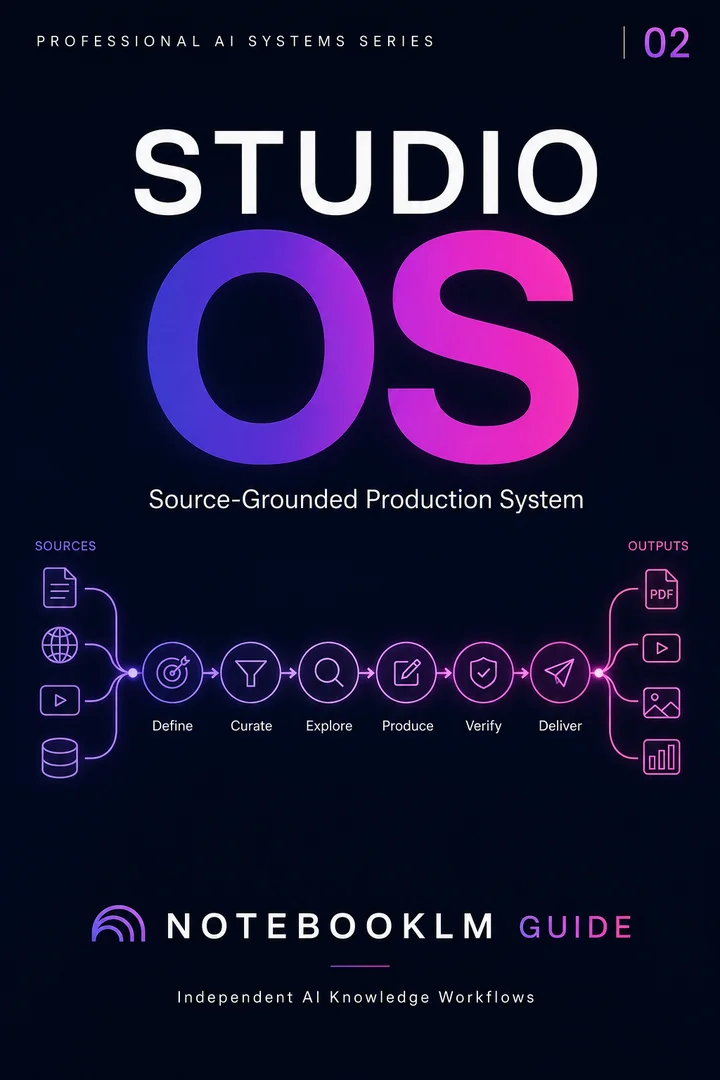
One strong 60-second video solves one output. The larger problem is making the whole Studio workflow repeatable.
Once you can generate a useful Short, the remaining work is source preparation, reusable prompting, review, and deciding when the same evidence should become audio, slides, visuals or a longer video instead.
Watch out: the first line of your instructions sets the opening pace. If you don’t explicitly direct the first five seconds, the model can default to a slow, generic intro (“Welcome back to another overview…”) — fatal in a format where the hook is everything. Always specify how the clip should open.
6 copy-ready prompts for better Short Video Overviews
Free on this page · no email gate · each prompt solves a different Short-format problem
The most useful prompt is not the longest one. It tells NotebookLM which idea must survive compression, what evidence to keep, and which caveat cannot be dropped. Start with the template closest to your job.
Free prompt · Single-insight explainer
[GOAL]: Create a Short Video Overview that explains one idea from my sources in about 60 seconds.
[AUDIENCE]: [describe audience]
[CORE QUESTION]: [the one question the video must answer]
[MUST INCLUDE]: One source-grounded claim, one concrete piece of evidence, and one necessary caveat.
[AVOID]: Background that does not help answer the core question.
[ENDING]: Finish with one sentence that states what the viewer should understand or do next.
Free prompt · Hook-first version
Open with the most surprising source-grounded fact or tension in my notebook. Then explain why it matters before adding context. Keep the Short focused on one idea only. Do not use a generic welcome or title-card introduction. End by connecting the opening fact back to the source's main conclusion.
Free prompt · Research paper in one minute
Turn this research paper into a Short Video Overview for an educated non-specialist. Preserve the study question, the single most important finding, and the strongest limitation that changes how the result should be interpreted. Define unavoidable technical terms in plain language. Do not imply causation if the source only supports association.
Free prompt · Pre-class micro-lesson
Create a Short Video Overview that prepares a learner to discuss these sources in class. Focus on the one concept they must understand before the session. Use one example from the sources, then end with a question that tests whether the learner understood the mechanism rather than memorized a definition.
Free prompt · Executive decision brief
Create a Short Video Overview for a time-constrained decision-maker. Lead with the decision-relevant implication, then show the evidence from the sources that supports it. Include one uncertainty or tradeoff the decision-maker should not miss. Avoid promotional language and unnecessary background.
Free prompt · Regenerate a weak Short
Regenerate the Short Video Overview with these corrections:
1. Replace the generic opening with the strongest source-grounded hook.
2. Remove any point that does not support the central question.
3. Add the missing caveat or limitation from the sources.
4. Prefer source figures, labels or examples that clarify the claim.
5. End with a precise takeaway, not a slogan.
Keep the result concise enough for the Short format.
Why these are free: this page should solve the immediate Short Video problem before asking you to buy anything. The paid Studio OS appears once, earlier, only for the larger repeatable-production problem.
Pro-tips for clean, accurate clips
Keep source filenames short and clean. The layout engine often displays the source name as an on-screen anchor. Rename before uploading.
Label the visuals you want. Clearly captioned figures in the source (“Figure 1: …”) can be referenced in your prompt and flashed at the right moment.
Script the first five seconds. The hook decides whether anyone watches the other fifty-five. Never leave the opening to chance.
One notebook, one idea. If you want a clip about a specific point, build a focused notebook around it rather than expecting the model to find it in a sprawling library.
Regenerate freely. The same sources with a tighter prompt produce a different clip. Treat the first output as a draft.
Short Video limits and availability
Google currently documents Short as an approximately 60-second Video Overview format. The current Help page also says Short and Cinematic Video Overviews are available only in English and for users age 18+. Short and Cinematic do not use the normal Visual Style selector.
Google does not publish a separate Short-only daily quota in the format help page. Instead, Video Overview usage is governed by plan-level limits. For the current numeric Video Overview quotas by plan, use the site's verified Studio limits table →. Keeping the numbers in one maintained source avoids quota figures drifting across multiple pages.
Check language and age eligibility first. Google currently says Short and Cinematic Video Overviews are English-only and available to users age 18+.
Check the plan-level Video Overview quota. If you have already reached the applicable generation limit, wait for the quota window to reset rather than repeatedly regenerating.
Do not look for the normal Visual Style selector. Google currently excludes Short and Cinematic from that customization control.
Narrow the source set. If the output keeps choosing the wrong idea, temporarily select only the sources relevant to the one-minute explanation.
Regenerate with an explicit central question. Use the free prompts above to tell NotebookLM which claim, evidence and caveat must survive compression.
Use Explainer or another format when the source is too nuanced. If the task needs several findings or competing interpretations, Short may be the wrong output rather than a broken one.
Honest limitations: what a 60-second clip can’t do
The format’s greatest strength — ruthless compression — is also its ceiling, and it’s worth being clear-eyed about the trade-offs before you build a library of these.
One insight means everything else is left on the floor. A Short Video Overview deliberately surfaces a single narrative. A paper with three important findings will foreground one and drop the rest. That’s correct behaviour for the format, but it means the clip is a doorway, not a digest. If you need the full picture, the long Video Overview or the Audio Overview is the better tool.
Nuance and caveats compress badly. Sixty seconds rewards confident, clean claims — which is exactly the wrong incentive for material full of “it depends,” error bars, and competing interpretations. For contested or high-stakes topics, watch the output critically: a punchy line can flatten a genuinely uncertain finding into false confidence. The fix is to prompt for the caveat explicitly and to point viewers back to the source.
It’s only as good as your sources. Source-grounding protects you from invented facts, not from bad inputs. Feed it a thin or biased document and you get a polished, confident clip built on thin or biased material. Curate before you generate.
Visual accuracy still needs a human check. The renderer pulls figures and callouts from your material, but it can emphasise the wrong number or mislabel a chart under time pressure. For anything you’ll publish or present, watch the finished clip once with the source open beside it.
None of this makes the feature less useful — it makes it a precision instrument. Used for what it’s good at (hooks, retention, sharing, getting someone to care), the 60-second format is genuinely powerful. Used as a shortcut around actually reading the source, it will quietly mislead. Know which job you’re doing.
Frequently asked questions
What are NotebookLM Short Video Overviews?
Short is a Video Overview format that Google describes as a way to quickly grasp key concepts from your sources in approximately 60-second videos.
How long are Short Video Overviews?
Google currently describes the Short format as approximately 60 seconds. Treat that as a product description rather than a guarantee that every generated file has an identical runtime.
Should I cut a longer NotebookLM Video Overview into Shorts or generate native Shorts?
Cutting a downloaded longer video can work when you want excerpts from one canonical narrative. Generate native Shorts when each clip needs its own hook, audience, evidence and standalone meaning. A strong hybrid is to make the long explainer first, then generate native Shorts from the same notebook for the most important ideas.
When should I use a longer Video Overview instead of a Short?
Use a longer Video Overview when several connected ideas, methods, findings or caveats need context. Use Short when one key concept or implication should land quickly and direct the viewer to a deeper source or next step.
What model powers Short Video Overviews?
Google's current Short Video Overview help does not identify a dedicated model for the Short format. Nano Banana 2 Lite is available in NotebookLM generally, but that does not establish it as the exclusive renderer for Short Video Overviews.
How do I create a Short Video Overview?
Open Studio, choose Video Overview, select Short when it is available, add custom instructions for the audience and central question, generate the video, then verify it against the sources and regenerate if needed.
Are Short Video Overviews accurate?
They are generated from your notebook sources, but compression can still omit context or emphasize the wrong point. For research, teaching, compliance, medical or other high-stakes uses, verify the Short against the underlying source and use it as an entry point rather than a replacement for the evidence.
Who can use Short Video Overviews?
Google's current Help page says Short and Cinematic Video Overviews are available only in English and for users age 18+. Google publishes plan-level Video Overview quotas rather than a separate numeric Short-only daily quota in the format help page.
Related Guides
Keep building with Studio
The rest of NotebookLM’s media outputs and the June 2026 feature wave.